Man Talk may earn a commission when you buy through links on this page. That never changes what gets recommended, and it never changes the price you pay.
Miyoo Mini Plus Setup Guide: OnionOS Step by Step
Setting up a Miyoo Mini Plus takes five steps and about thirty minutes. Download the latest OnionOS release, format a quality microSD card to FAT32, and copy the files across. Insert the card and the device installs everything on first boot. Then load game files you have dumped from cartridges and discs you own. This Miyoo Mini Plus setup guide walks through every step in order, including the parts most quick-start sheets skip. Those parts include the BIOS folder, WiFi setup, over-the-air updates, themes, and save states. No soldering, no flashing tools, and no command line are involved. OnionOS runs entirely from the microSD card, so the process is close to risk free. Pop the card out and the device returns to stock. The steps below follow the official OnionOS documentation and the settled advice of the retro handheld community. Expect one honest warning up front. The microSD card that ships in the box is the weakest part of the package, and replacing it is step zero.
What you need before starting
Five things cover the whole job: the Miyoo Mini Plus, a quality microSD card, a card reader, a computer, and a USB-C charger. The stock card should be replaced before anything else.
| Item | What to look for | Why it matters |
|---|---|---|
| Miyoo Mini Plus | Any current revision | The Plus has WiFi; the original Mini does not |
| MicroSD card | 64GB to 256GB, A1-rated, SanDisk or Samsung | Stock cards are the top reported failure point |
| Card reader | USB or built-in slot | Every file transfer happens on a computer |
| Computer | Windows, Mac, or Linux | Needed for formatting and copying |
| USB-C charger | Any standard phone charger | The install should run on external power |
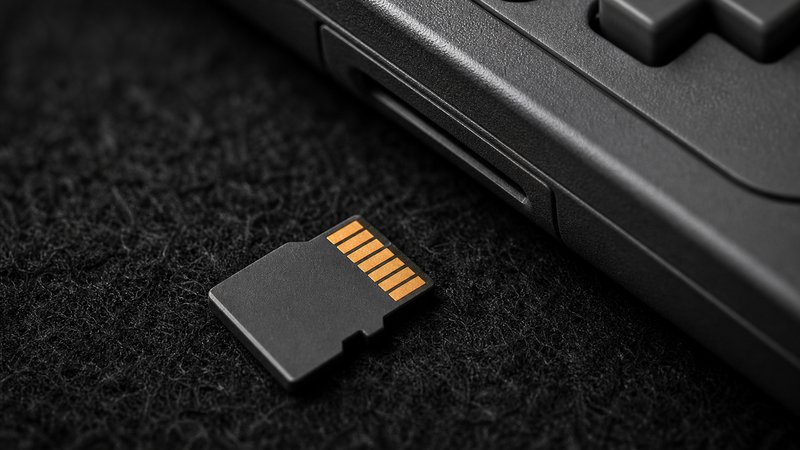
The card is the one purchase decision here. Look for the A1 rating, which guarantees a minimum of 1,500 random read operations per second. That number is what keeps menus, box art, and save states feeling instant. A 128GB card comfortably holds everything through the PS1 library and costs $12 to $20. The staff behind Man Talk bring more than 35 years of combined video game experience to these picks.
Why replace the stock card first?
Because corrupted stock cards are the most common failure owners report across Miyoo communities. The card in the box is a slow, unbranded unit, and the preloaded game library on it is a mess of duplicates and mislabeled files. The standard community advice is blunt: set the stock card aside as a backup and build fresh on a name-brand card. Every step below assumes a new card.
Step 1: Download the latest OnionOS release
OnionOS is free, open-source firmware distributed through the project's GitHub releases. The documentation hub links straight to the current build, so there is never a reason to grab it from a third-party mirror.
Start at the official OnionOS site, which carries the docs referenced throughout this guide. Then work through these steps.
- Follow the site's download link to the latest stable release. It arrives as a single zip named after the version.
- Save the zip somewhere easy to find, such as the desktop.
- Extract the zip to its own folder.
- Check the result. Several folders and files should sit at the top level, not one wrapper folder containing everything.
That last check matters more than it looks. Some extraction tools nest the contents one folder deep, and that single wrapper folder is a classic cause of a device that refuses to boot. Skip beta builds on a first install. Stable releases are the ones the documentation describes. Version numbers move steadily, since Onion remains in active development. The docs carry release notes for each build, and they are worth a skim before updating an established card.
Step 2: Format the microSD card to FAT32
The card must be FAT32 before anything copies over, because the handheld boots Onion from no other format. Windows hides the FAT32 option on cards over 32GB, so most people need a small third-party tool.
- Insert the new card into the reader and back up anything already on it. Formatting erases the card completely.
- On Windows, format with a free tool such as Rufus or GUIFormat. The built-in formatter only offers FAT32 up to 32GB.
- On Mac, open Disk Utility, select the card, and choose MS-DOS (FAT) with the Master Boot Record scheme.
- Give the card a short name such as ONION and run the format.
- Skip exFAT and NTFS entirely. Neither one boots on this device.
The exFAT trap catches a lot of first-timers. Large cards often ship formatted exFAT from the factory, and every desktop OS reads them fine. The handheld does not. If a finished card later shows an unresponsive black screen on boot, the format is the first suspect.
Step 3: Copy the files and run the first boot
Copy everything you extracted to the root of the card, eject it safely, and slide it into the powered-off handheld. The installer runs itself on the next boot.
- Copy every extracted file and folder to the root of the card.
- Confirm nothing sits inside a wrapper folder. The card root should mirror the extracted zip exactly.
- Eject the card safely from the computer.
- Insert the card into the powered-off Miyoo Mini Plus.
- Plug in the charger, then power on. The Onion installer starts on its own and shows a progress bar.
- Leave the device alone until the install finishes and the Onion home screen appears.
- Open the Package Manager app and tick the consoles and apps you want on the main menu.
The charger step is straight from the documentation, which advises keeping the battery topped up while the first boot completes. The install takes a few minutes and needs no input beyond the package choices at the end. The Package Manager is also reversible. Systems can be added or removed later without reinstalling anything, so early choices carry no penalty.
Step 4: Load your games and mind the legal line
Shut the device down, move the card back to the computer, and drop game files into the matching folders inside Roms. Games do not come with OnionOS, and this guide links to no source for them.
The legal position deserves a plain statement. Emulators and OnionOS itself are legal, open-source software. Game files are a different matter. Downloading titles you never bought is piracy, full stop. Backing up cartridges and discs you own is widely treated as personal fair use, though the law varies by country. Dump your own library, keep it for personal use, and no gray area applies to you.
Onion sorts games by folder code inside the Roms directory. The most common codes are below; the full list lives in the emulators section of the official docs.
| System | Folder inside Roms |
|---|---|
| NES / Famicom | FC |
| Super Nintendo | SFC |
| Genesis / Mega Drive | MD |
| Game Boy | GB |
| Game Boy Color | GBC |
| Game Boy Advance | GBA |
| PlayStation | PS |
On the BIOS question, the official FAQ is clear: the BIOS files Onion's emulators require come pre-installed with the firmware. Most owners never touch that folder. If a system you add later asks for a console BIOS that is not included, the same ownership rule applies. Dump it from hardware you own, and match the exact file names the docs list.
Step 5: Connect WiFi and update over the air
Connect the Plus to a 2.4GHz network through Settings, then run the OTA update app to stay current. The wireless chip also syncs the clock automatically once online.
- Open Settings from the main menu and select the WiFi entry.
- Join a 2.4GHz network. The Plus does not see 5GHz-only networks.
- Open the Apps tab and launch the OTA update app.
- Check for a newer release and install it wirelessly when one appears.
The OTA app is the reason WiFi setup is worth two minutes. Per the documentation, it updates Onion without the SD card ever leaving the device or a computer getting involved. Recent builds also expose network file-transfer services through the Tweaks app, which the docs cover for owners who want to add games wirelessly later. One honest note on battery: the radio costs runtime, so switch WiFi off for long sessions away from a charger.
Save states and the Game Switcher
Tap the MENU button during play to exit into the Game Switcher, which saves your spot automatically. Selecting that game later drops you back exactly where you left off.
This is the feature that makes OnionOS feel modern. The Game Switcher presents recent games as full-screen cards, each frozen at the moment you left. Auto-resume means a Game Boy RPG and a PS1 racer can both sit mid-session indefinitely. The documentation notes one boundary: a few standalone emulators outside RetroArch skip automatic states and the Switcher. Core consoles like NES through PS1 all support it.
Save data lives on the card, inside the Saves folder, with states stored under the current profile. That location makes backups trivial. Copy the Saves folder to a computer occasionally and a dead card costs hardware, not progress.
Sleep mode rounds out the picture. A quick tap of the power button pauses the device mid-frame, and another tap wakes it instantly. Owners report multi-day standby in sleep, which suits the pick-up-and-play habit these handhelds are built around. Between sleep, auto-resume, and manual states, losing progress takes real effort.
Themes and making the menu yours
Open the Theme Switcher app to preview and apply new looks on the device. The community library holds more than 70 themes, from faithful console tributes to minimal grids.
Installing one is a copy job. Download a theme from the community collection linked in the official docs, then drop its folder into the Themes directory on the card. The Theme Switcher previews each one before applying, so experimenting is free. Beyond themes, the Tweaks app collects the practical options: button remapping, display settings, and the network toggles mentioned earlier. None of it is required. The default look ships clean, and plenty of owners never change it.
One practical tip from community threads: favor themes updated for the current Onion version. Older themes still apply, but icons for newly added systems can show up blank. Each theme's page lists its supported version, and the fix for a mismatch is simply grabbing a newer build of that theme.
Easy Netplay: local multiplayer on two devices
Easy Netplay links two Miyoo Mini Plus units for local multiplayer with no router and no RetroArch configuration. The host creates a hotspot and the guest joins in a few presses.
This is the most underrated WiFi feature on the device. Per the documentation, the host side spins up a hotspot, launches the game, and opens the session automatically. The guest side joins the hotspot, and Onion verifies that both devices hold matching files before connecting. Classic two-player libraries, fighting games and puzzlers especially, work the way a link cable once did.
Keep expectations grounded on range. Sessions run over a direct device-to-device hotspot, so this is a same-room feature, not an online one. Owner reports describe latency low enough for turn-based and puzzle play first, with faster genres close behind.
Does Easy Netplay need matching game files?
Yes. Onion checks the core and the game file checksums on both devices before it connects a session. Two copies of the same game dumped from different regional releases will fail that check. The fix is simple: both players load the identical file. The feature also requires the Plus on both ends, since the original Mini has no wireless chip.
Troubleshooting the five common failures
Nearly every failed install traces back to the card: wrong format, files nested one folder deep, or a counterfeit card. Reformatting to FAT32 and recopying fixes most cases in ten minutes.
Why will the handheld not boot after installing OnionOS?
Three causes cover almost every report in the community threads. First, the card is exFAT or NTFS instead of FAT32; reformat and recopy. Second, the Onion files sit inside a wrapper folder instead of the card root; move them up one level. Third, the card itself is counterfeit or failing, which is common with bargain-bin listings. Testing with a known-good name-brand card settles it.
Why are games missing from the menu?
Usually the files landed in the wrong folder code, or the system is switched off in the Package Manager. Check the folder name against the table above first, since FC versus NES trips people constantly. Then confirm the console is enabled as a package. A menu refresh happens on reboot, so restart the device after big file drops.
Battery drain complaints deserve one line as well. The 3,000mAh cell delivers roughly four to six hours depending on the emulated system, and WiFi left on shortens that. Those numbers match the device's published spec, not a defect.
Where to go after setup
The Miyoo Mini Plus is one branch of a fast-moving budget handheld market. Two companion guides cover the wider field and the brand decision behind it.
For the full landscape at this price, the best retro handhelds under $100 roundup compares the Miyoo against its five closest rivals. Anyone still weighing ecosystems should read the Anbernic vs Retroid vs Miyoo brand guide before buying a second device. New releases and follow-up guides land in the retro handhelds section as they publish, and the about page explains how recommendations get made here. A device set up the way this guide describes will keep working for years. OnionOS updates arrive over the air, and saves back up with one folder copy. Worst case, the whole install rebuilds from scratch in half an hour.
Frequently asked questions
Does OnionOS work on the original Miyoo Mini or only the Plus?
OnionOS supports both the original Miyoo Mini and the Miyoo Mini Plus, and the install steps are identical. The difference is WiFi. Only the Plus has a wireless chip, so OTA updates, clock sync, and Easy Netplay are Plus-only features. Original Mini owners update by moving files onto the card manually.
Does OnionOS include games or BIOS files?
It includes no games, and the project links to none. The official documentation states the BIOS files its emulators need come pre-installed with Onion. Game files are on you. The accepted legal position is to dump backups from cartridges and discs you own, since downloading titles you never bought is piracy.
How long does a full Miyoo Mini Plus setup take?
Plan for thirty to forty-five minutes on a first run. The download and card format take about ten minutes, the file copy five to fifteen depending on card speed, and the on-device install under ten. Loading a large game library afterward is the slowest part and scales with library size.
Can installing OnionOS brick or void the Miyoo Mini Plus?
The risk is close to zero because nothing is flashed to the device. OnionOS lives entirely on the microSD card, so removing that card returns the handheld to stock behavior. Keep the original card in a drawer as a fallback. Warranty terms vary by seller, but the hardware stays untouched.